Microsoft MarketplaceSecureDeal account
Confirming your purchase with Microsoft
This usually takes a few seconds. Keep this page open.
- Plan
- —
- Status
- Pending activation
- Subscription
- —
- Billing
- Billed by Microsoft
- Purchased by
- —
SecureDeal is a Word add-in that turns a contract into a protected deal: the buyer's money is held on a partner bank's escrow account and released to the seller only after the agreed documents are checked. Your Microsoft purchase is confirmed in the card on the right.
This usually takes a few seconds. Keep this page open.
Buyers and sellers in different countries rarely trust each other with a full prepayment. SecureDeal removes that risk: the buyer funds the deal, a partner bank holds the money, the seller ships and uploads evidence, and the payout happens only when the buyer confirms each stage. Everything — terms, milestones, documents, disputes and invoices — lives in one deal record you open from the Word ribbon.
Funds are held on a bank transit account in the deal currency, not by SecureDeal. The bank's escrow fee is shown up front when you create the deal.
Split the deal into stages with a percentage each. For every stage define the documents required before payout — invoices, certificates, transport records, inspection reports.
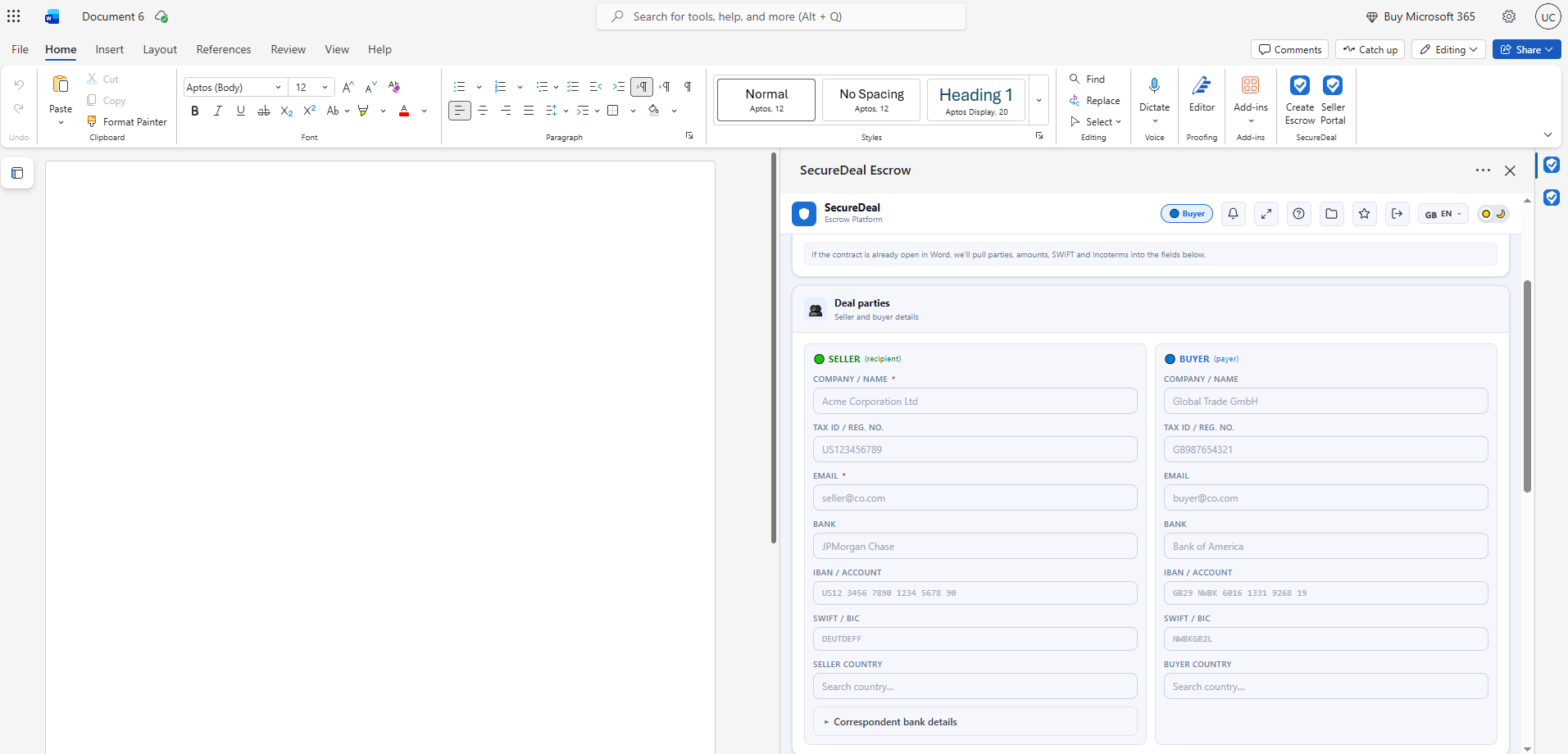
Open the contract, and the add-in imports parties, bank details, amount and delivery terms. AI-assisted extraction fills the form; you only confirm.
The seller gets an email invitation, reviews the terms, accepts the deal, uploads documents and tracks payouts — no Word or installation needed.
If the evidence does not match the terms, the buyer rejects it and the funds stay protected. Open a dispute or refund the milestone — nothing moves without a decision.
Invoices in 17 languages as PDF or PNG, email notifications for every step, and a full history of who did what and when — ready for accounting and compliance.
Buyer and seller actions stay separated. Money moves only after the agreed evidence has been reviewed.
Choose the partner bank, amount and currency, define milestones and the documents required for each stage.
The seller reviews the schedule and document requirements in the cabinet and accepts the escrow deal.
Transfer the amount to the bank's escrow account using the details and payment reference shown in the deal.
Perform the work, then upload the invoices, certificates or transport records required for the stage.
Accept the documents when the conditions are met, or open a dispute so the funds remain protected.
Once the stage is confirmed, the milestone amount goes to the seller and is recorded in the deal history.
SecureDeal runs inside Microsoft Word. Three steps and your first protected deal is ready.
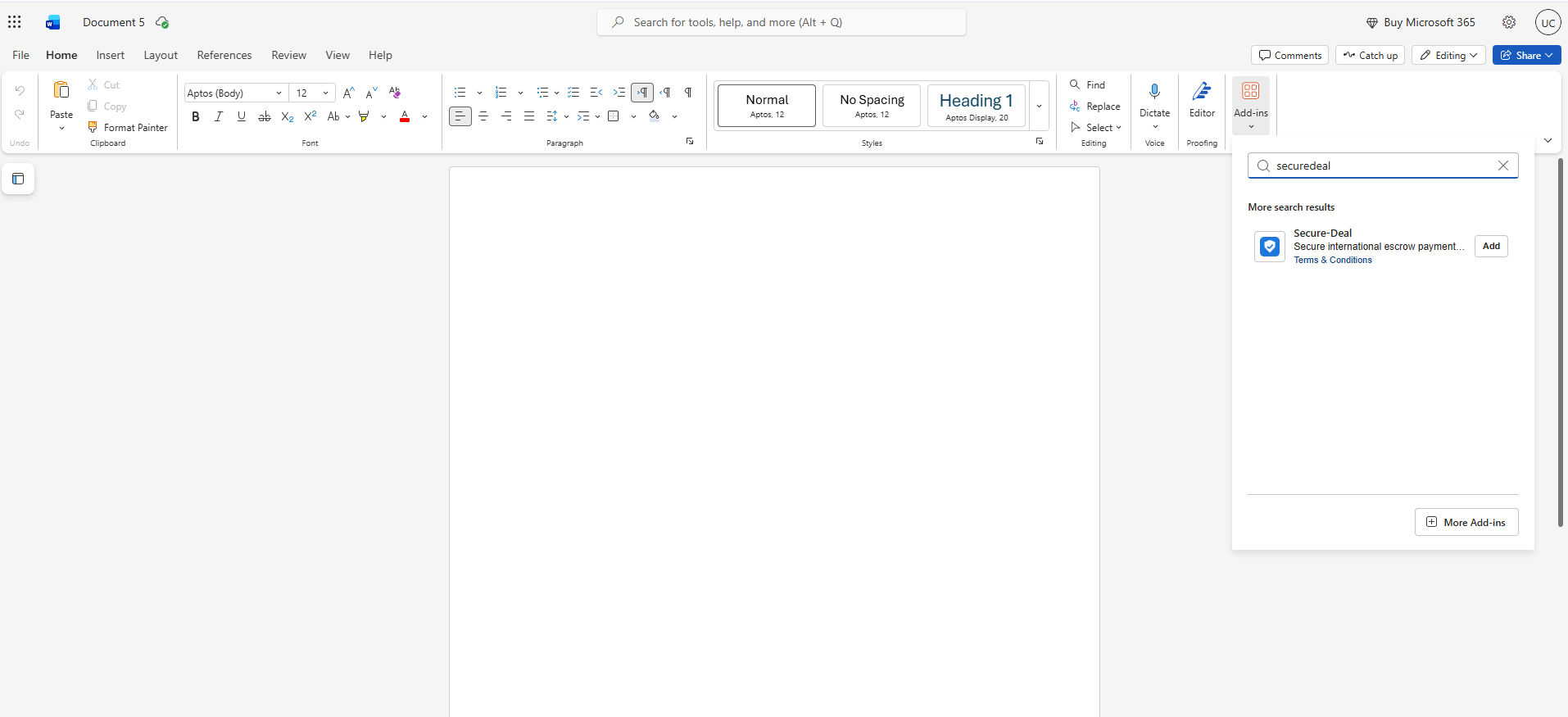
In Word choose Home → Add-ins → search “SecureDeal” → Add. It appears on the Home ribbon. Works in Word for Windows, Mac and the web.
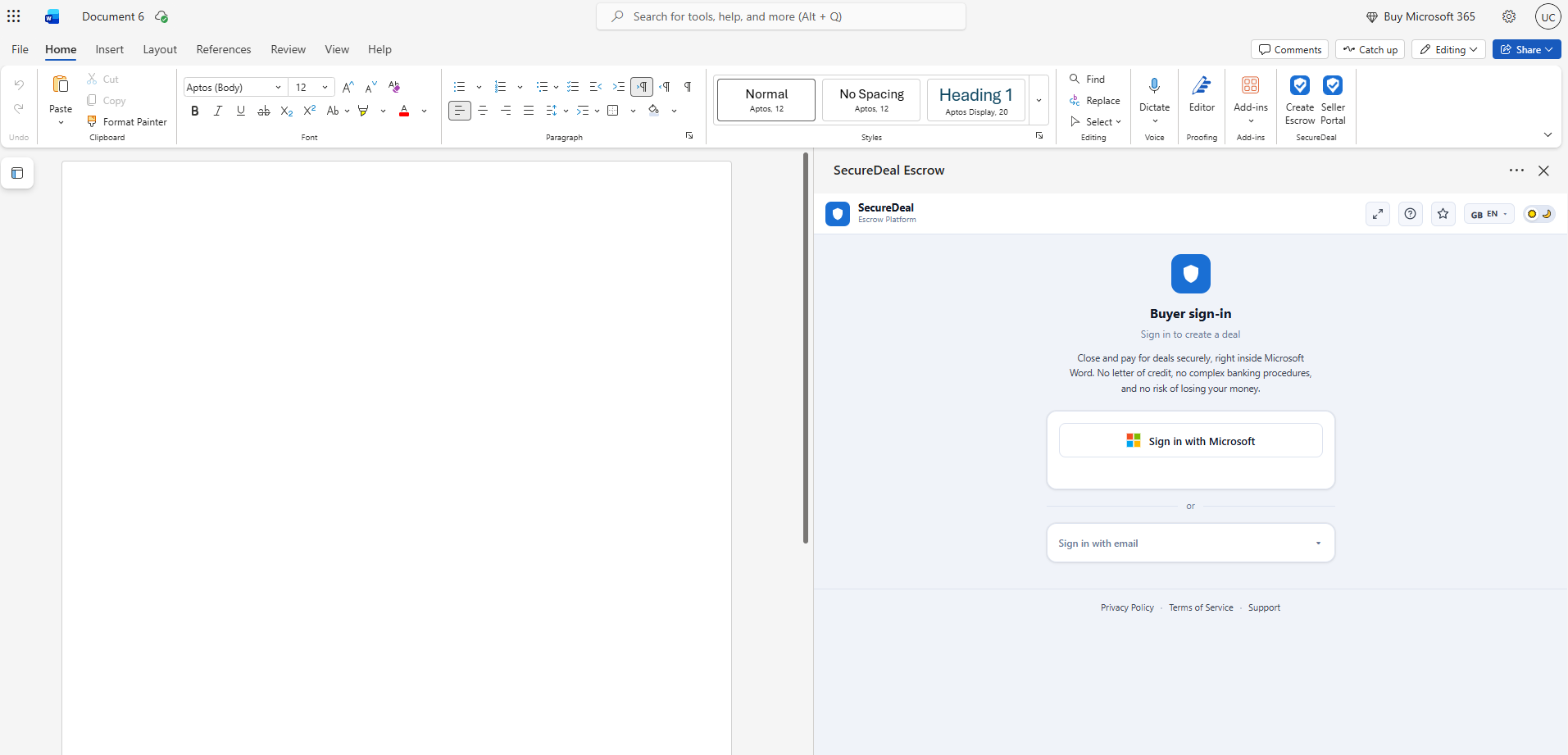
Open SecureDeal from the ribbon and choose Sign in with Microsoft. Use the account you purchased with — the plan is already attached to it.
Open a contract, import the parties and amount, choose a partner bank and payment milestones. The seller receives an invitation by email.
The subscription sets the platform fee on every deal.
Microsoft charges the subscription monthly to the payment method in your Microsoft account. You will not receive a separate invoice from SecureDeal for the subscription. Platform fees on deals are shown in each deal and in the invoice for that deal.
Yes. Open the subscription in the Microsoft 365 admin center or Azure portal and pick another plan. The new fee applies to deals created after the change; SecureDeal updates automatically.
Cancel the subscription in your Microsoft account. Existing deals continue until they are completed or refunded; your account moves to the Pay-as-you-go plan, and your data stays available.
The plan is attached to the account that bought it. Team seats are available on Business and Enterprise — contact us to add colleagues to the same plan.
Essential cookies keep Alemhub working. Analytics cookies help us improve the product and are optional. Read the cookie policy.